MP3 Toolbox helps you turn recordings, podcasts, and video soundtracks into clean MP3 files you can organize in any music app. Everything runs in the browser: upload, convert, edit metadata, add album art, then download.
Why use an online MP3 converter?
MP3 remains the most compatible format for phones, cars, DJ software, and older hardware. If your source is WAV, FLAC, M4A, AAC, or video-only files with a good audio track, converting to MP3 makes sharing and playback simpler without huge file sizes.
Our service is built for quick jobs: one file at a time, clear steps, and no desktop install. That is useful when you are on a work laptop, a Chromebook, or any device where you cannot install FFmpeg or a full DAW.
Supported input formats (audio & video)
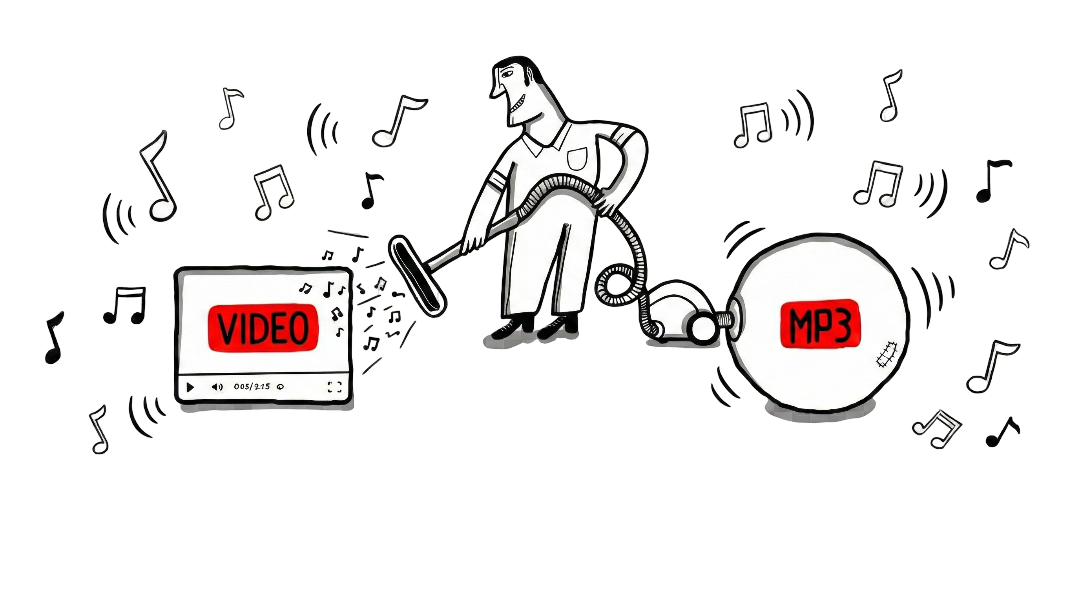
Video: MP4, MKV, MOV, AVI, WebM, M4V, WMV, FLV, and 3GP. We extract the audio stream and encode it to MP3, so you get speech, music, or ambience from clips, screen recordings, or downloaded lectures—provided you have the right to use that material.
Audio: MP3, M4A, WAV, OGG, FLAC, AAC, and WMA. If the file is already MP3, you can still use the same flow to refresh tags or replace cover art without re-encoding unnecessarily where the pipeline allows.
For a full reference with format notes and typical use cases, see our formats guide.
ID3 tags and cover art explained
ID3 metadata is what music players read to show title, artist, album, year, genre, and track number. A consistent tag set makes your library searchable in iTunes, Windows Media Player, Android music apps, and most car systems.
Embedding cover art (JPG or PNG) stores the image inside the MP3 so it travels with the file when you copy it to a USB stick or phone. For best results, use a square image (often 1000×1000 or larger) that is not blurry; very large images are resized on save to keep file size reasonable.
Tips for better sound quality
- Start from the best source you have. Converting a low-bitrate file to MP3 cannot recover detail that was never there.
- Keep originals when possible. Archive lossless masters (FLAC/WAV) separately; use MP3 for everyday listening and sharing.
- Normalize loudness in a DAW if needed. Our tool focuses on conversion and tagging, not mastering—but a balanced source converts more predictably.
Privacy, retention, and fair use
Files are processed on our servers and removed automatically after about 15 minutes. We apply rate limiting to reduce abuse. We do not intend MP3 Toolbox for copyright-infringing material: only process audio and video you own or are allowed to use.
Details are in our Privacy Policy and Terms.
More tools on MP3 Toolbox
Besides this MP3 editor, you can use dedicated flows for related tasks—each with its own upload limits and options as documented on the page:
- Video to MP3 — extract the audio track from MP4, MKV, MOV, AVI and other video files.
- Extract audio from video — same job, but you choose the output format: WAV, FLAC, M4A, OGG and more.
- MP3 to MP4 — turn audio into a simple video file for social or players that prefer video containers.
- Compress audio — shrink a file to fit an email or upload limit, with the size estimated up front.
- Ringtone maker — cut a track to 30 seconds and export M4R for iPhone or MP3 for Android.
- Convert audio format — output formats such as WAV, FLAC, M4A, and more depending on the tool.
- Change audio quality — adjust bitrate or quality settings for smaller or larger files.
- Audio Cutter — trim MP3 by time range before download.
- Merge audio — combine multiple tracks into one file.
- EXIF viewer — see the camera, date and GPS data hidden in a photo.
- Remove EXIF — strip that metadata before sharing the picture.
- Compress image, resize image and convert image — all in your browser, nothing uploaded.
- Blog — guides on conversion, tagging, and workflows.
Frequently asked questions
Is MP3 Toolbox free?
Yes. There is no payment step and no account wall for the core converter and tag editor.
What is the upload limit?
Each file can be up to 100MB. If your media is larger, compress or split it first, or use the cutter where applicable.
Do I need to install software?
No. A modern browser is enough. Conversion uses server-side processing after you upload.
Will my file stay on the server?
Files are deleted automatically after about 15 minutes. Download your MP3 promptly.
Can I edit tags without converting?
If your workflow already produced an MP3 here, you can update tags and cover in the same session. For deeper batch editing offline, dedicated taggers may be more efficient.
Where can I read the full technical flow?
See How it works for a step-by-step description of validation, FFmpeg conversion, and tagging.
Read the full how-it-works guide →